
Instructors
Checking in students - with a pass
1. When looking at a class, click the little pencil icon in bottom right
2. Enter the customers information. If their phone number/email exists in the system already, it will pre-populate their information.
3. You can choose add-ons here (ie mat rentals), and add coupon codes for them if they have a pass.
4. Click submit when finished.
1. When looking at a class, click the little pencil icon in bottom right
2. Enter the customers information. If their phone number/email exists in the system already, it will pre-populate their information. You can choose add-ons here (ie mat rentals) if needed. Click submit.
3. Click their name on the class list and click "Checkout"
4. To take payment, You can either manually enter their credit card, copy and paste a payment link to send to them, or mark them paid as cash (ie if you are taking payment outside the app)
Checking in students - in person payment
1. Choose the attendee from the class list.
2. Click the little pencil icon in the bottom right. Choose ‘Remove attendee from class’
3. Mark as a no show if required (this removes a class from their pass), then click ‘Confirm cancellation’. They will show as cancelled now, and in a few minutes, the number of attendees should update.
Cancelling a student from class
Change Class Instructor
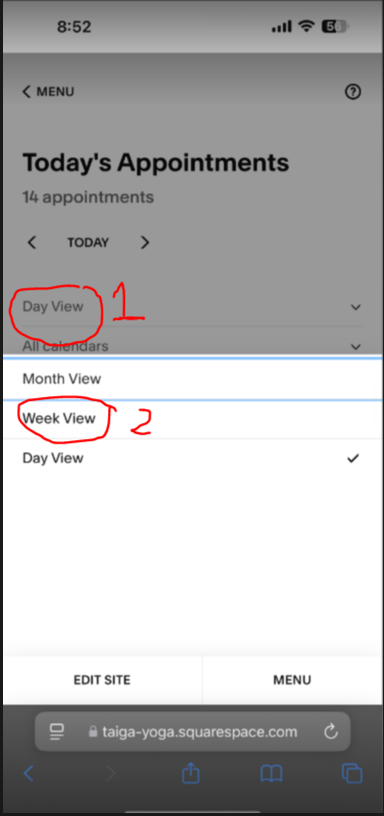
1. Navigate to the appointments page on your device. Log in, and make sure you change it to "Week View" as shown in the screenshot

2. Reference the instructions here to add the appointments page as an "app" on your phone home screen.


When someone signs up to a virtual class, an appointment is created on the Taiga google calendar
1. Go onto the Google Calendar app on the studio tablet and open the corresponding virtual class, there will be an Acuity google meet link as the location.
2. Click that and the google meet app will open for you to join the meeting.